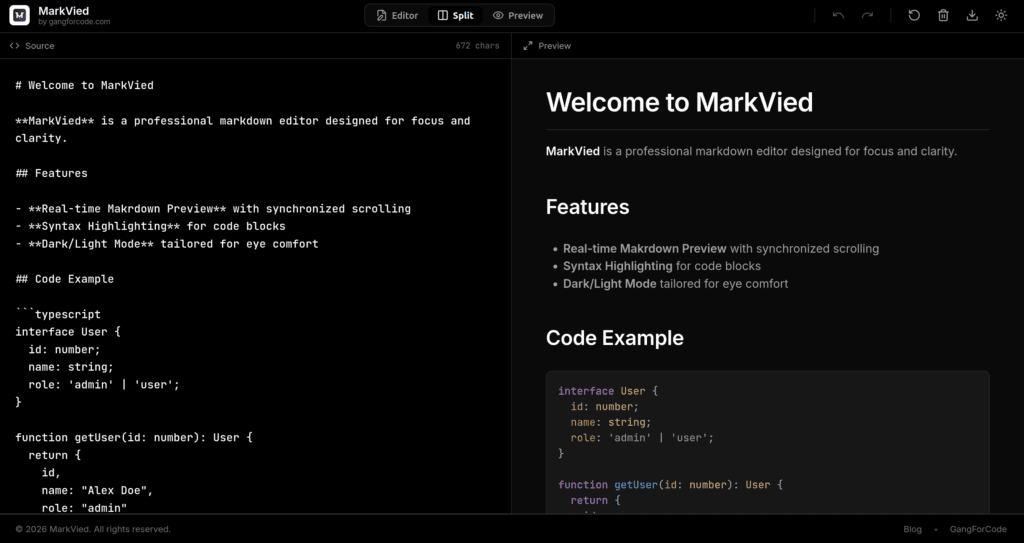
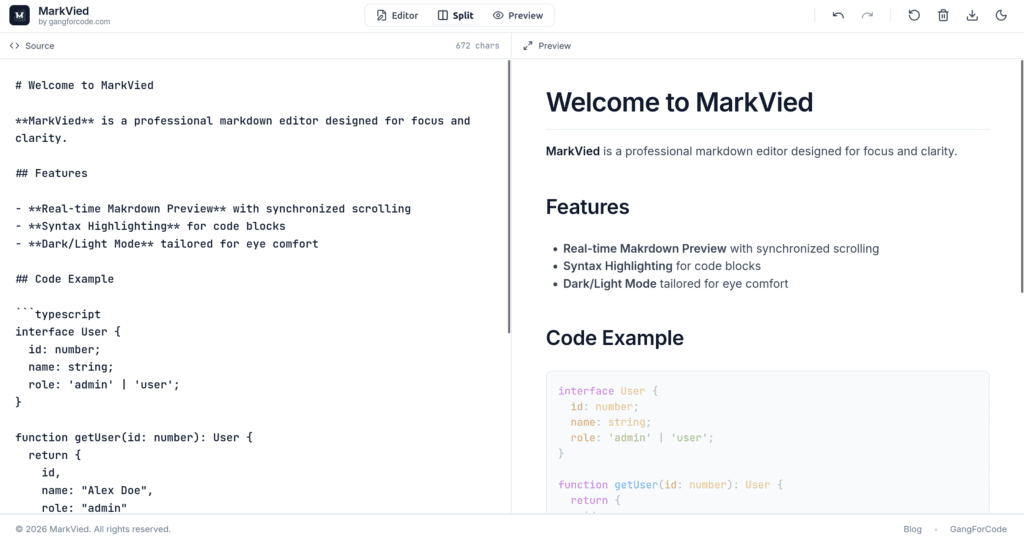
An online Markdown editor is useful when you want to write or review Markdown without first opening a full development environment. The GangForCode Markdown tool provides an in-browser editing workflow with a live preview, so you can see how headings, lists, links, code blocks, tables, and other Markdown syntax render as you write.
What Is Markdown?
Markdown is a lightweight markup format used to write structured text using plain characters. It is common in README files, developer documentation, issue descriptions, notes, and static-site content.
# Project Notes

This is a **bold** word.

- First item
- Second item

[Open documentation](https://example.com)
Why Use an Online Editor?
- No project setup is needed just to preview Markdown.
- Useful on machines where your normal editor is unavailable.
- Helpful when learning Markdown because source and rendered output can be viewed together.
- Convenient for checking documentation before publishing it elsewhere.
Open the GangForCode Markdown Tool
Open the GangForCode Markdown editor and enter Markdown in the editor. Use the preview to verify whether the formatting matches what you intended.
Markdown Syntax You Can Test
Headings and Text
# Heading 1## Heading 2**bold***italic*inline code
Lists and Links
- Item onecreates an unordered list item.1. First stepcreates an ordered list item.[GangForCode](https://gangforcode.com/)creates a link.
Code Blocks
Fenced code blocks are commonly written with three backtick characters followed by an optional language name. Keep the code as selectable text so readers can copy it directly.
A Simple Documentation Workflow
A useful workflow is to separate writing from publishing. Markdown keeps the source readable, while the preview helps you catch formatting problems before the document reaches a README, CMS, knowledge base, or documentation platform.
- Draft the documentation as Markdown.
- Use live preview to check headings, lists, links, and code.
- Review URLs, spelling, and examples.
- Check that code blocks remain selectable and easy to copy.
- Copy the finished Markdown into your repository, CMS, or documentation system.
Writing Better Markdown for Developers
Good Markdown is more than correct syntax. Organize a long document with a logical heading hierarchy, keep paragraphs focused, and use lists when readers need to scan steps or requirements. For code-heavy documentation, explain what the code demonstrates before the code block and explain important assumptions afterward.
Example: README Structure
- Project name: explain what the project does.
- Requirements: list the language, runtime, and dependencies.
- Installation: provide commands in the correct order.
- Usage: show a minimal working example.
- Configuration: describe environment variables and required settings.
- Troubleshooting: document common failures and their solutions.
Limitations of Online Markdown Editors
An online editor is convenient, but it should not replace version control or a full development environment. Large repositories, automated documentation builds, Git operations, linting, and project-wide refactoring are better handled by dedicated development tools. Also remember that Markdown implementations can differ, so always validate the final output in the platform where it will be published.
- Draft the documentation as Markdown.
- Use live preview to check headings, lists, links, and code.
- Review URLs, spelling, and examples.
- Copy the finished Markdown into your repository, CMS, or documentation system.
Online Editor vs Full IDE
| Task | Online Markdown Editor | Full IDE |
|---|---|---|
| Quick Markdown preview | Convenient | Usually requires more setup |
| Large software project | Not the primary tool | Better suited |
| Git workflows | Limited | Integrated |
| Learning Markdown | Fast visual feedback | Possible with extensions |
Common Markdown Problems
- Different Markdown parsers may support different extensions.
- Relative links and image paths can behave differently across environments.
- Long code samples are harder to review in a visual preview.
- Tables should be checked in preview because alignment errors are easy to miss in raw text.
When This Tool Is Useful
- Drafting a README.
- Checking documentation before a commit.
- Learning Markdown syntax.
- Preparing notes that will later be published elsewhere.
- Reviewing formatting from another device.
Conclusion
An online Markdown editor is a focused tool for writing and checking Markdown without creating a full project. The main benefit is rapid feedback: write the syntax, inspect the rendered result, and then move the finished content into the system where you plan to publish or store it.